
Availability: every plan. Printing checks, membership, and budgets need Foundation or higher.
Your organization is set up, your bank accounts and funds are in place, and you've just been handed the login. This is the tour of what you'll actually do: a few minutes each week, one sit-down a month, and two reports before each board meeting. No accounting background needed.
Three words you'll see a lot:
- Funds are pools of money with a purpose — general operating money, a scholarship pot, a building fund. Every dollar belongs to a fund, so you always know what's spoken for and what's free to spend. (Funds are not cash flow.)
- The Shelf is where you keep documents: bank statements, board minutes, receipts.
- Register is the Checkbook Register — the page that works like the paper check register you may already keep.
Your books are ready
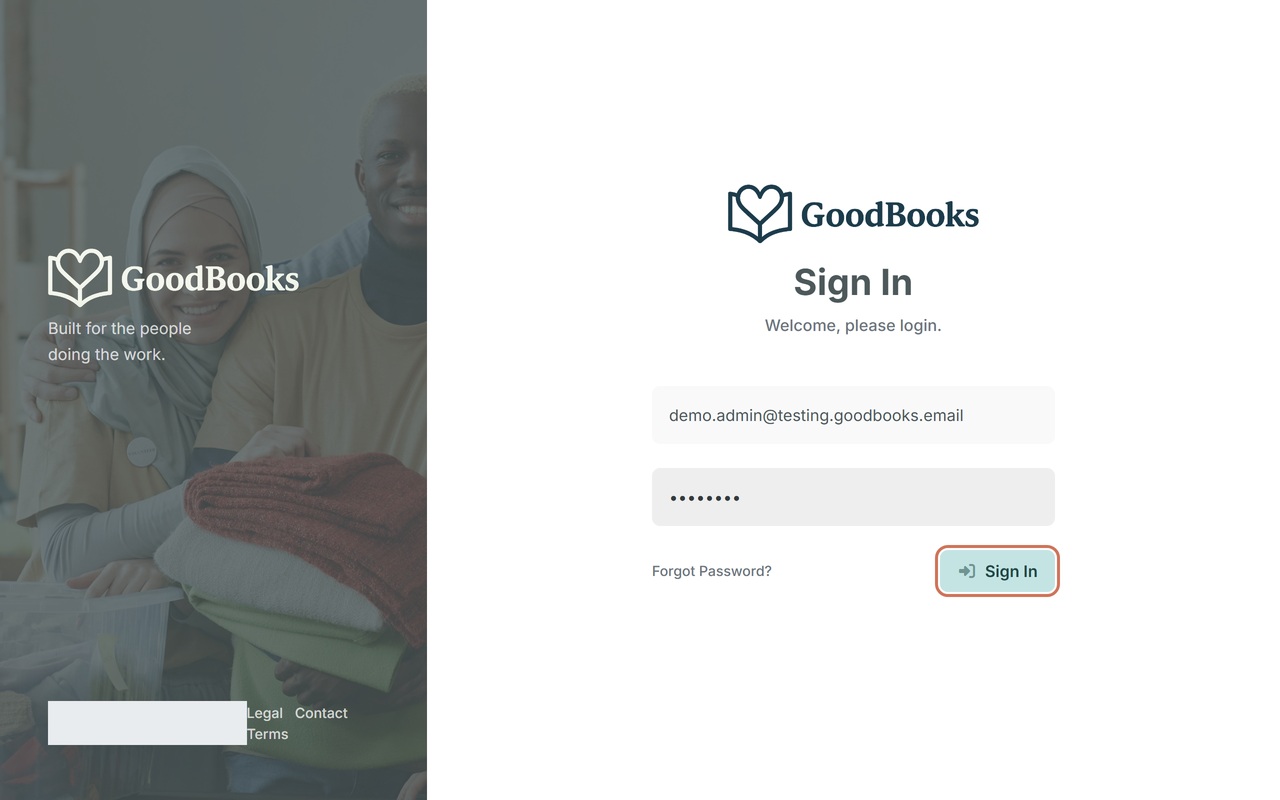
Sign in. Go to your GoodBooks address, enter your email and password, and click Sign In. If you were invited by email, the link in that message set your password.
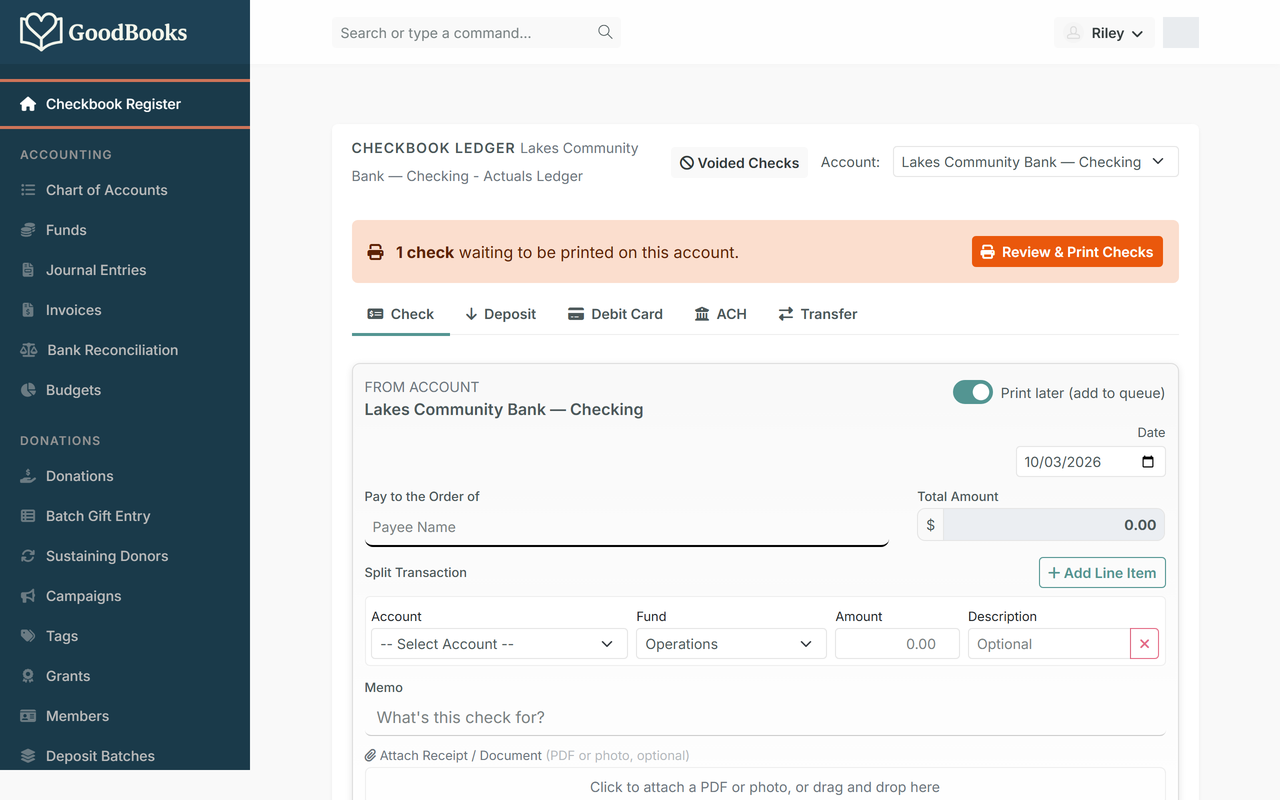
Meet the Checkbook Register. This is home. The top shows which bank account you're looking at, a banner if any checks are waiting to print, and tabs for the things you record most: Check, Deposit, Debit Card, ACH, and Transfer. Below the entry form is the register itself, newest first, with a running balance.
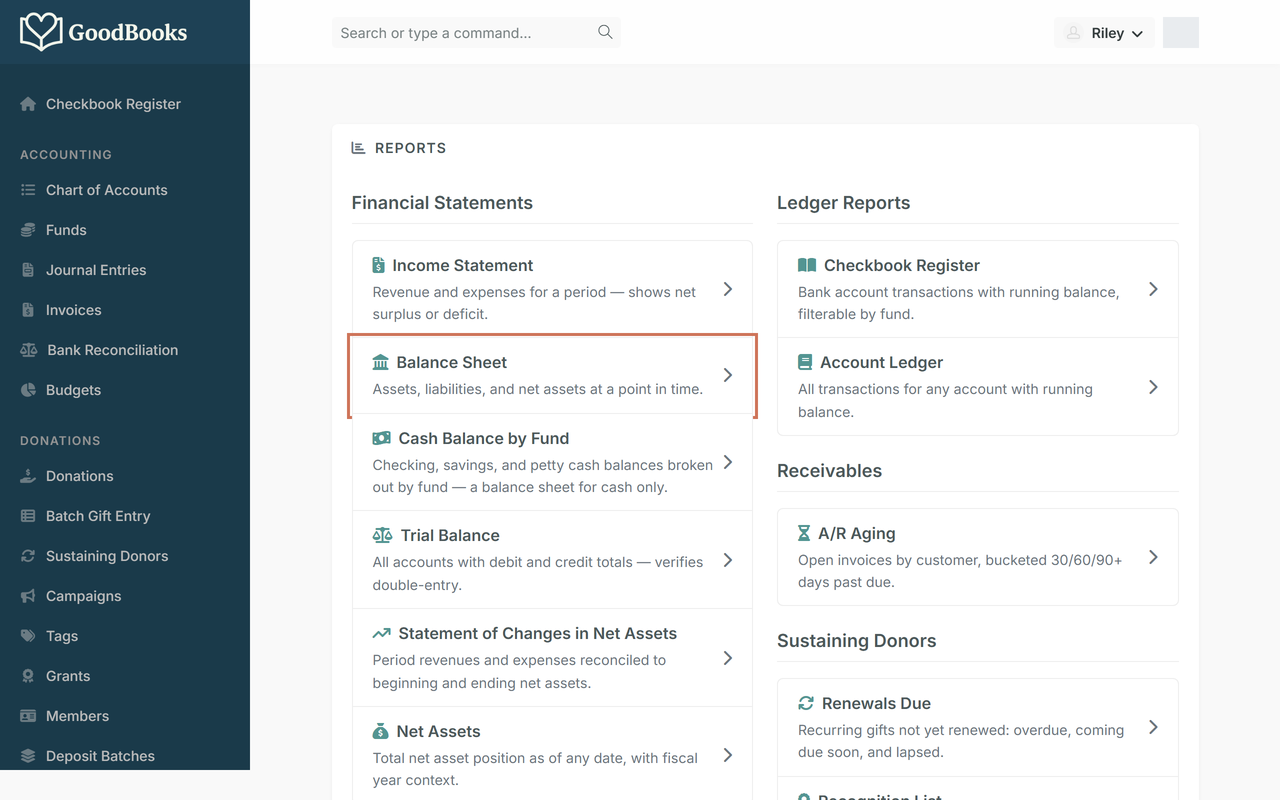
Find your reports. Click All Reports in the left menu. Every report lives on this one page, grouped by what it's for.
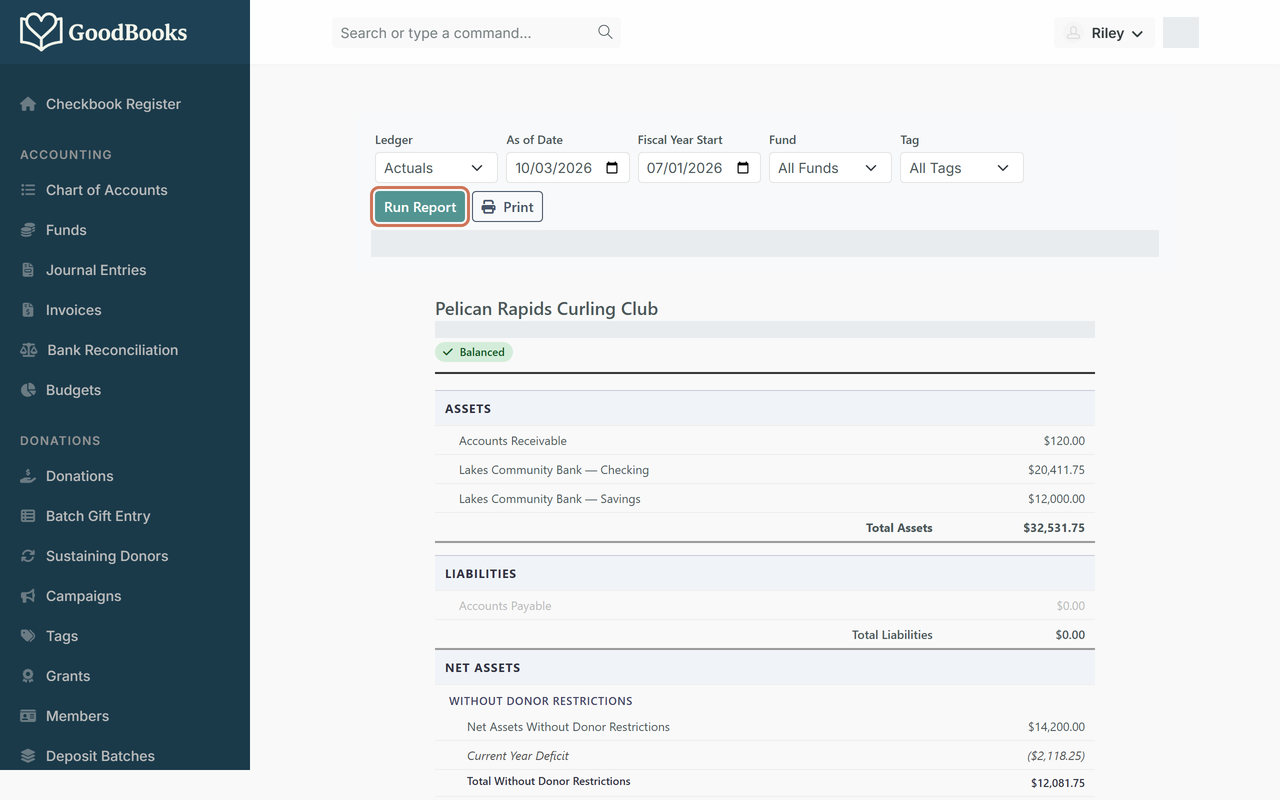
Check your starting position. Open the Balance Sheet. It shows what you own, what you owe, and how much of your money is restricted to a fund versus free to spend. Use a quick-date button or pick a date, then click Run Report.
Weekly routine
Ten minutes a week keeps the books current. Record money in as deposits and money out as checks, debit-card purchases, or ACH payments. Each entry asks which fund it belongs to. (Full details: The Checkbook Register.)
Start a deposit. On the register, click the Deposit tab.
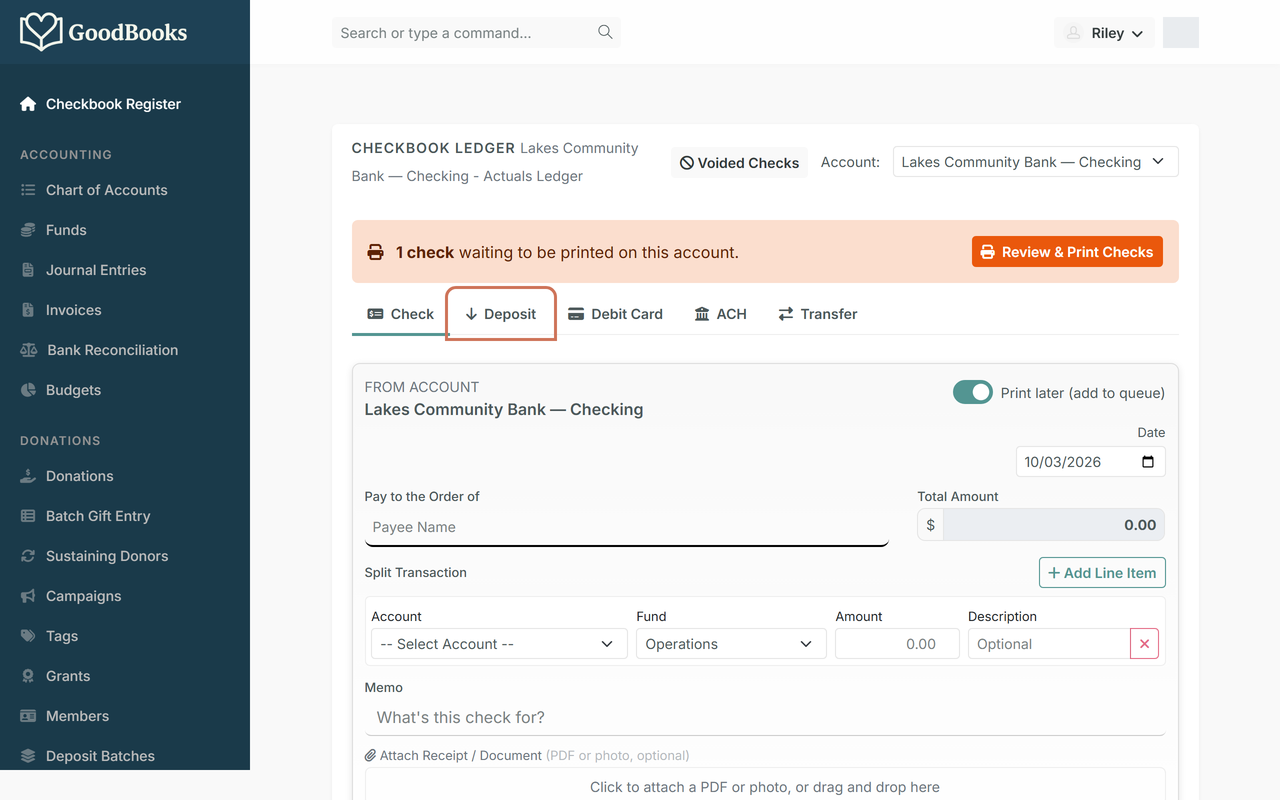
Say who it's from, what it's for, and which fund. Type the payer's name, choose an income category and the fund the money belongs to, and enter the amount. Add a short memo so future-you remembers what it was. Click Record Deposit.
If you pick a contributions category, GoodBooks may suggest recording the money as a donation instead. That's the better path when a specific donor should get credit and a receipt (see "Record a donation" below). For anonymous collections or grants without a donor record, carry on here.
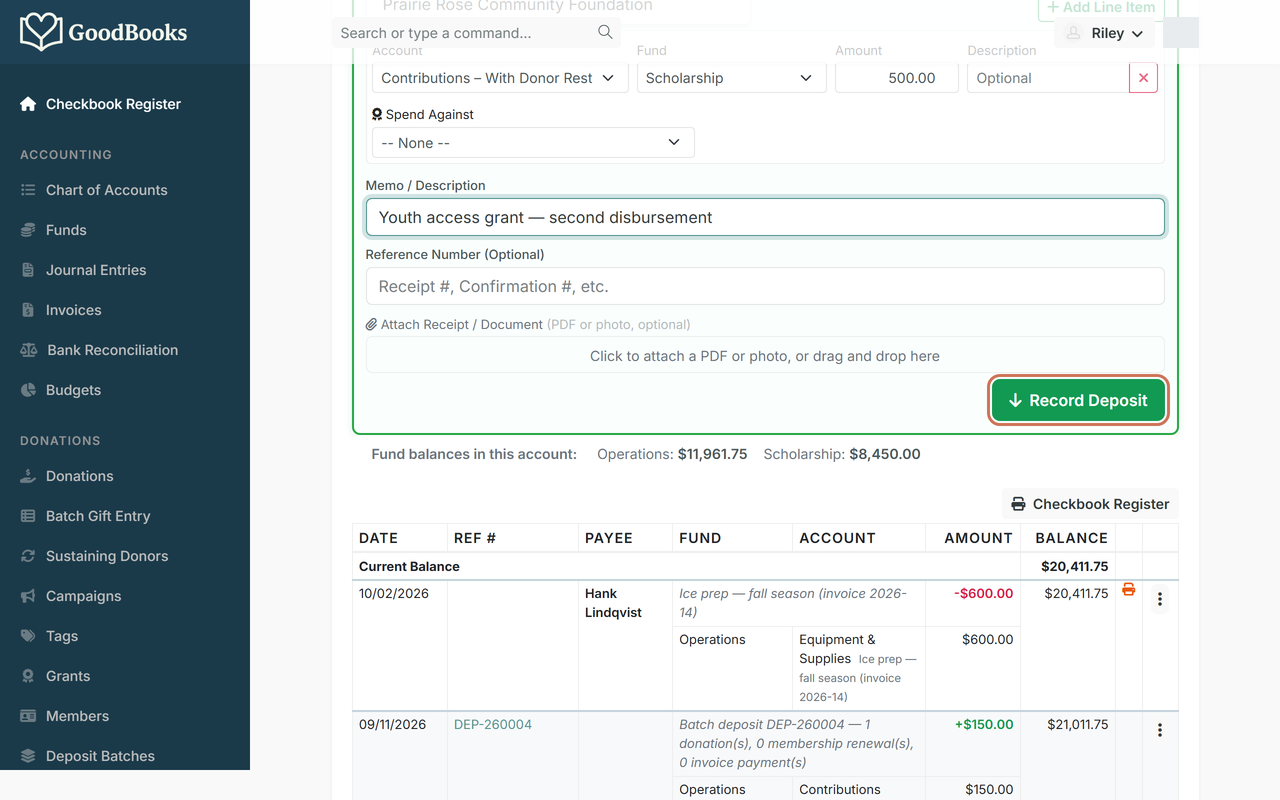
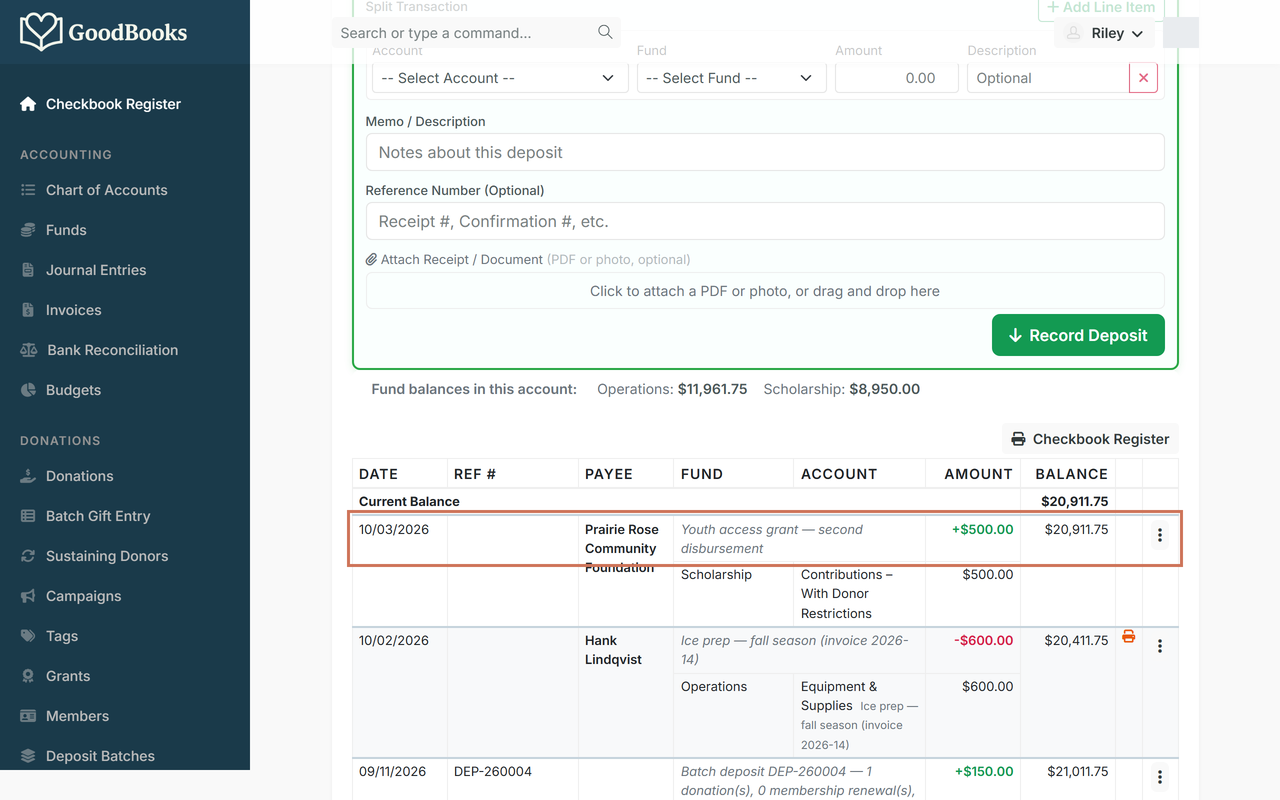
See it land in the register. The new entry appears at the top with the fund and category it went to, and the balance updates. The fund balances line above the table shows how much of this bank account belongs to each fund.
Record a bill you need to pay. Click the Check tab. You'll enter the bill now and print the check in a moment.
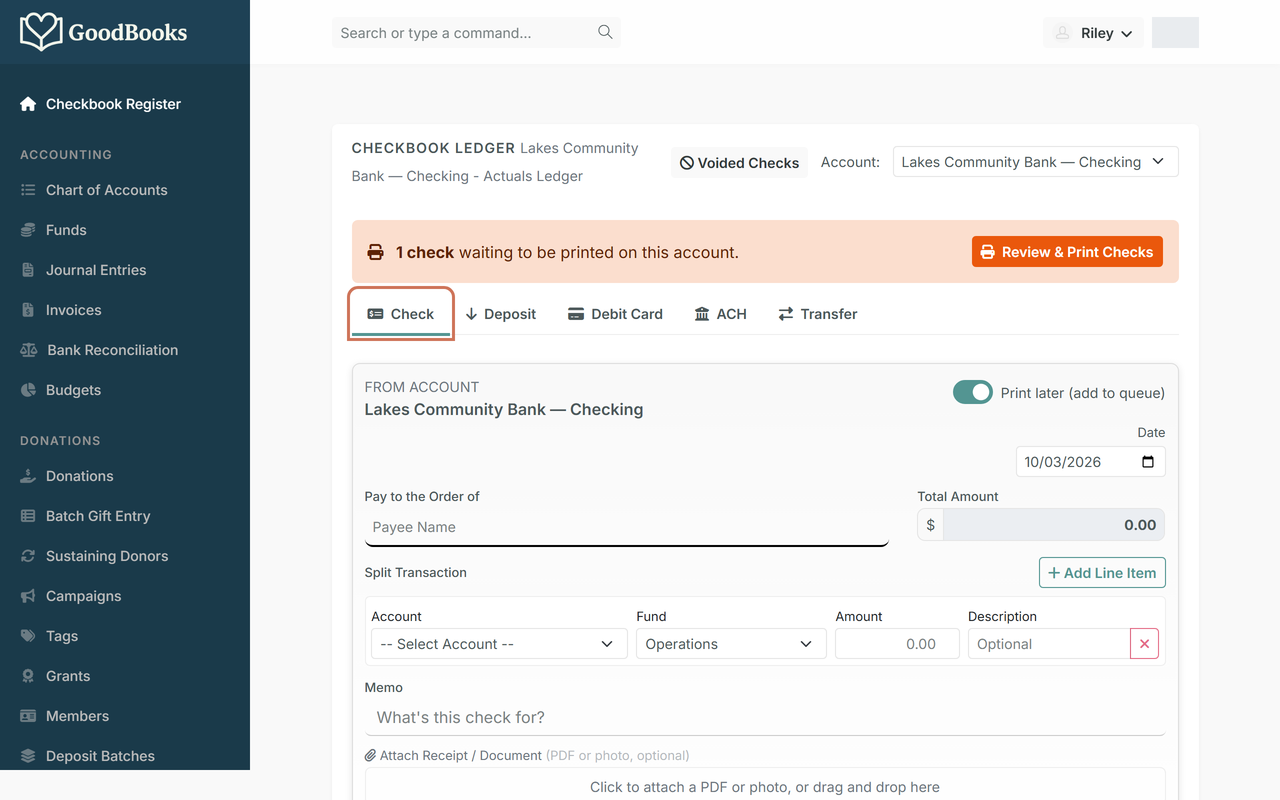
Leave "Print later" on. With Print later (add to queue) switched on, GoodBooks holds the check number until you print, so numbers stay in order. If you hand-write checks, switch it off and type the check number instead.
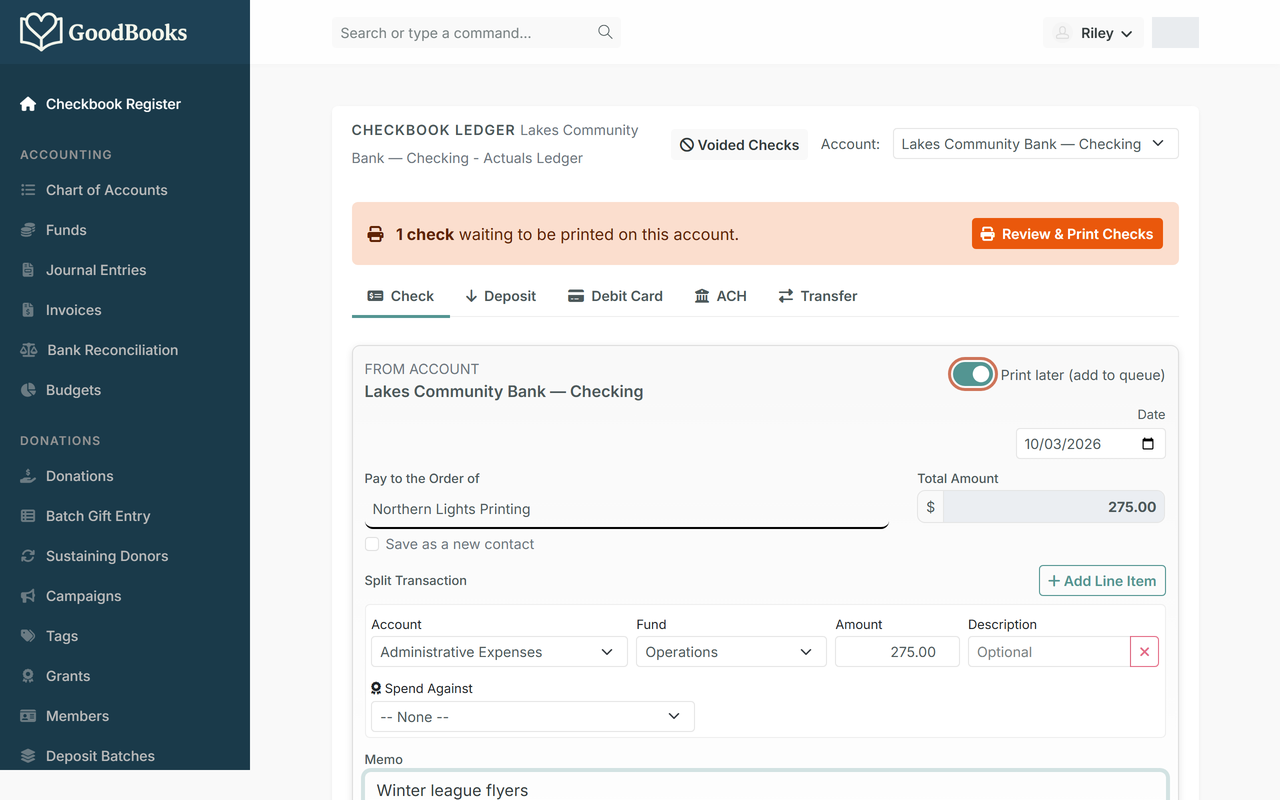
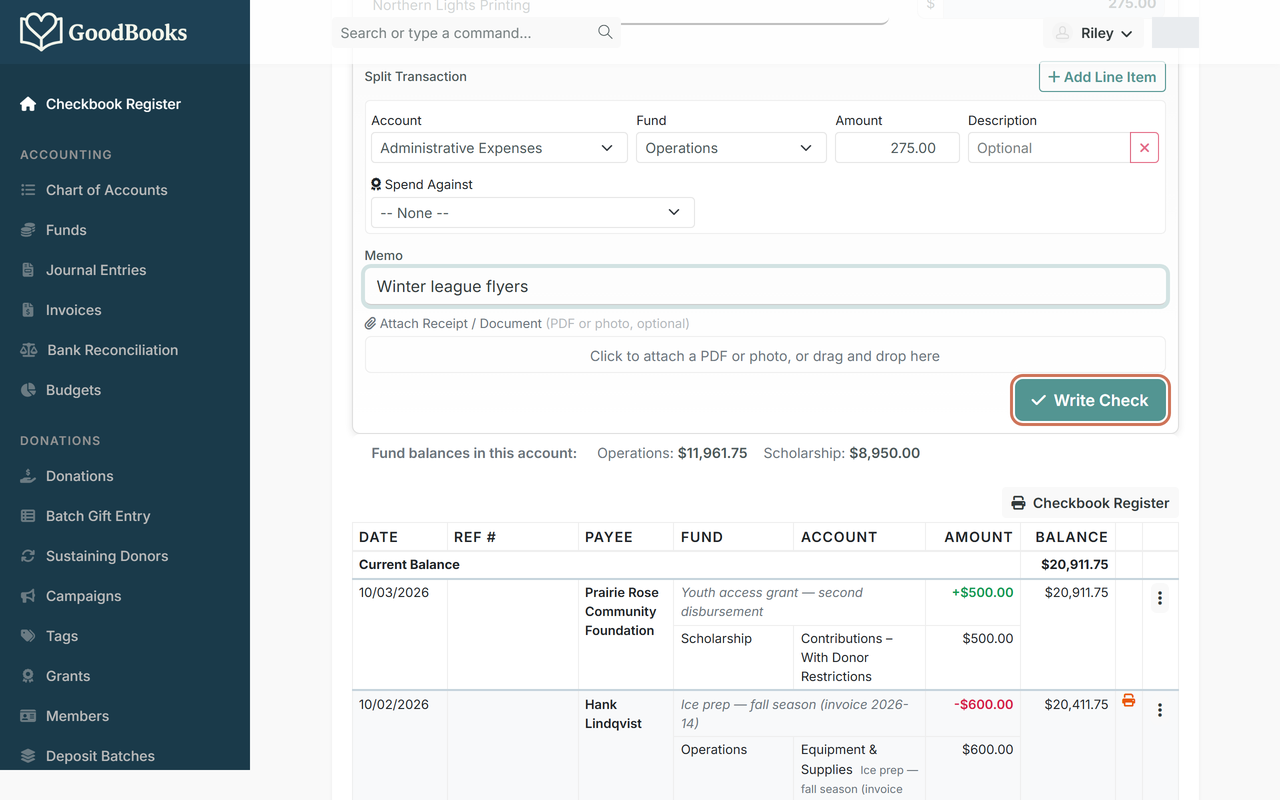
Fill in the check. Enter the payee, the expense category, the fund it should come out of, the amount, and a memo. Click Write Check.
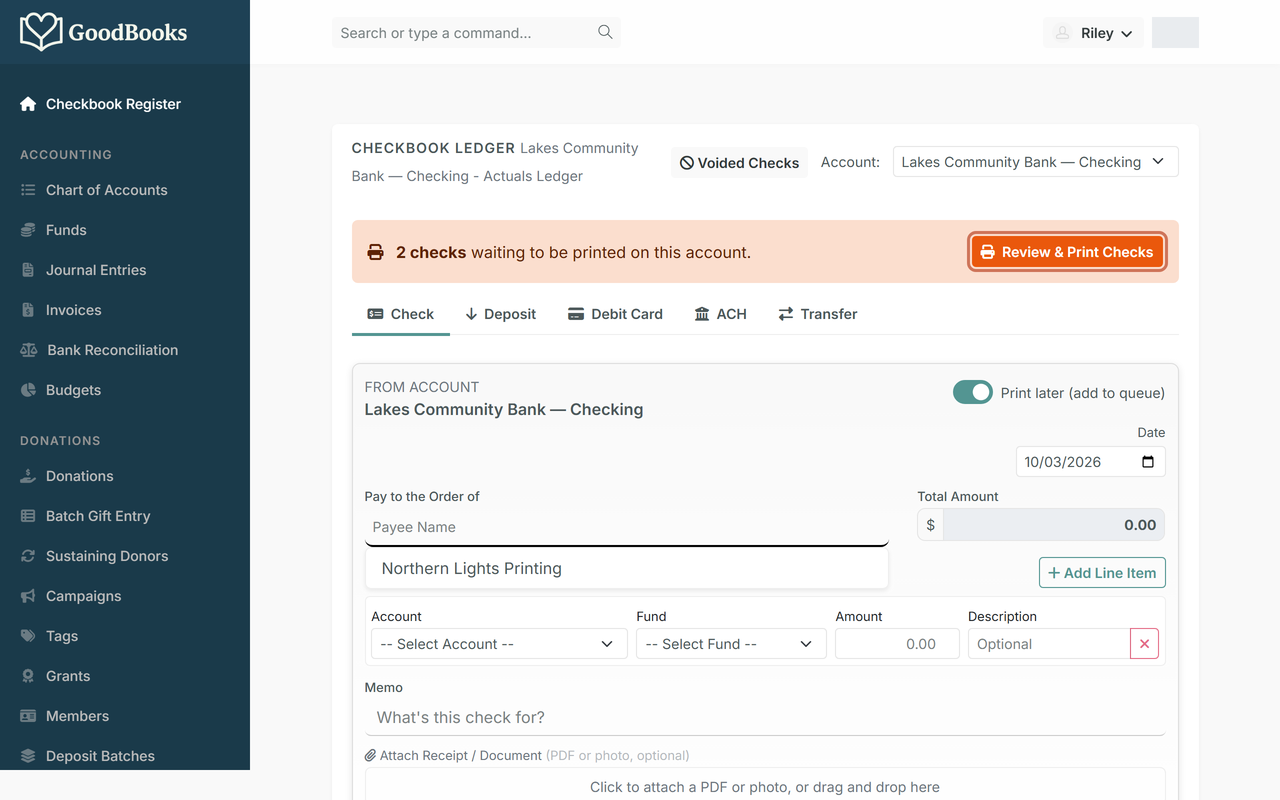
Go to the print queue. The orange banner now counts the checks waiting. Click Review & Print Checks.
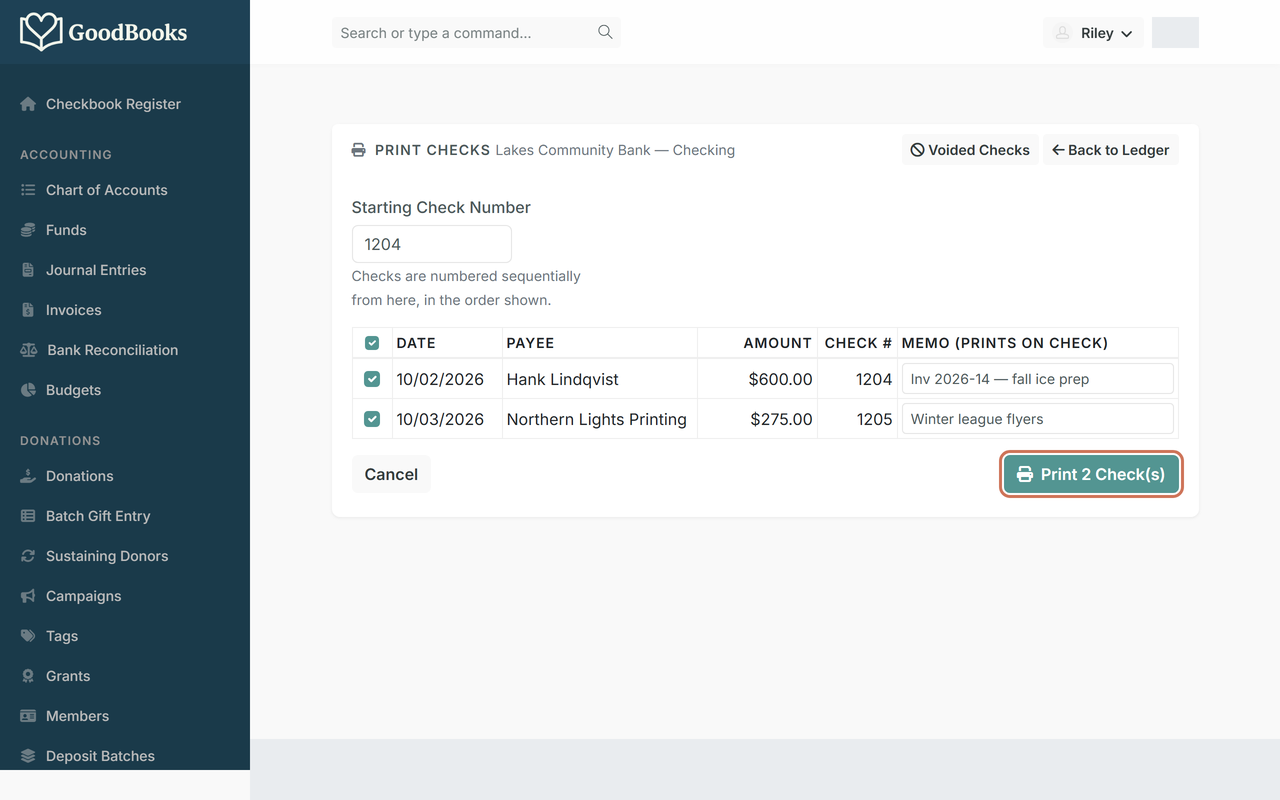
Print your checks. Confirm the starting check number matches the next blank check in your printer, tick the checks you want, and click Print. The checks open as a PDF. After they print, GoodBooks asks whether they all came out right; say yes and the check numbers are locked in. (More in Printing Checks.)
Members and donors
If your organization has members, GoodBooks tracks who's current and who's due. Donations get their own entry so every gift is tied to a donor and a receipt.
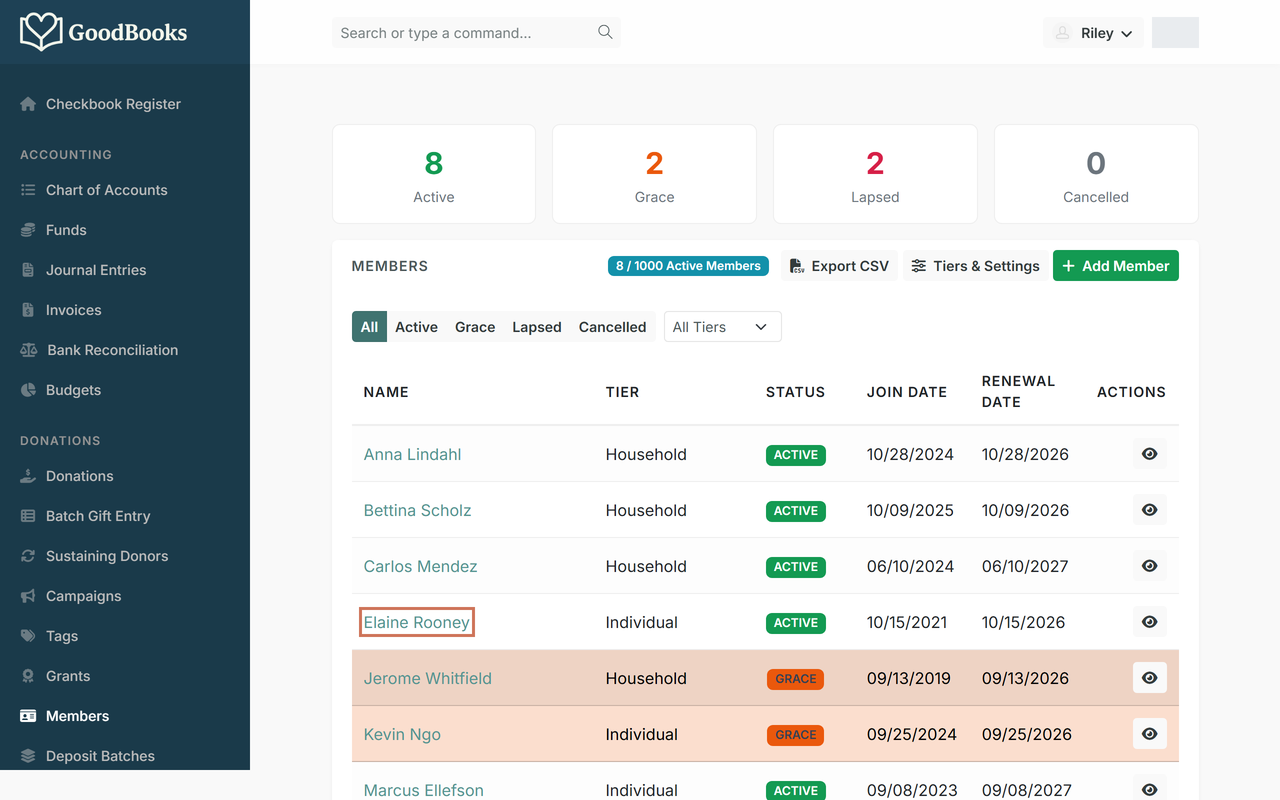
Look up a member. Click Members in the left menu. The roster shows each person's tier, status, and renewal date. Use the status buttons to see just who's in their grace period or lapsed. Click a name to open their record.
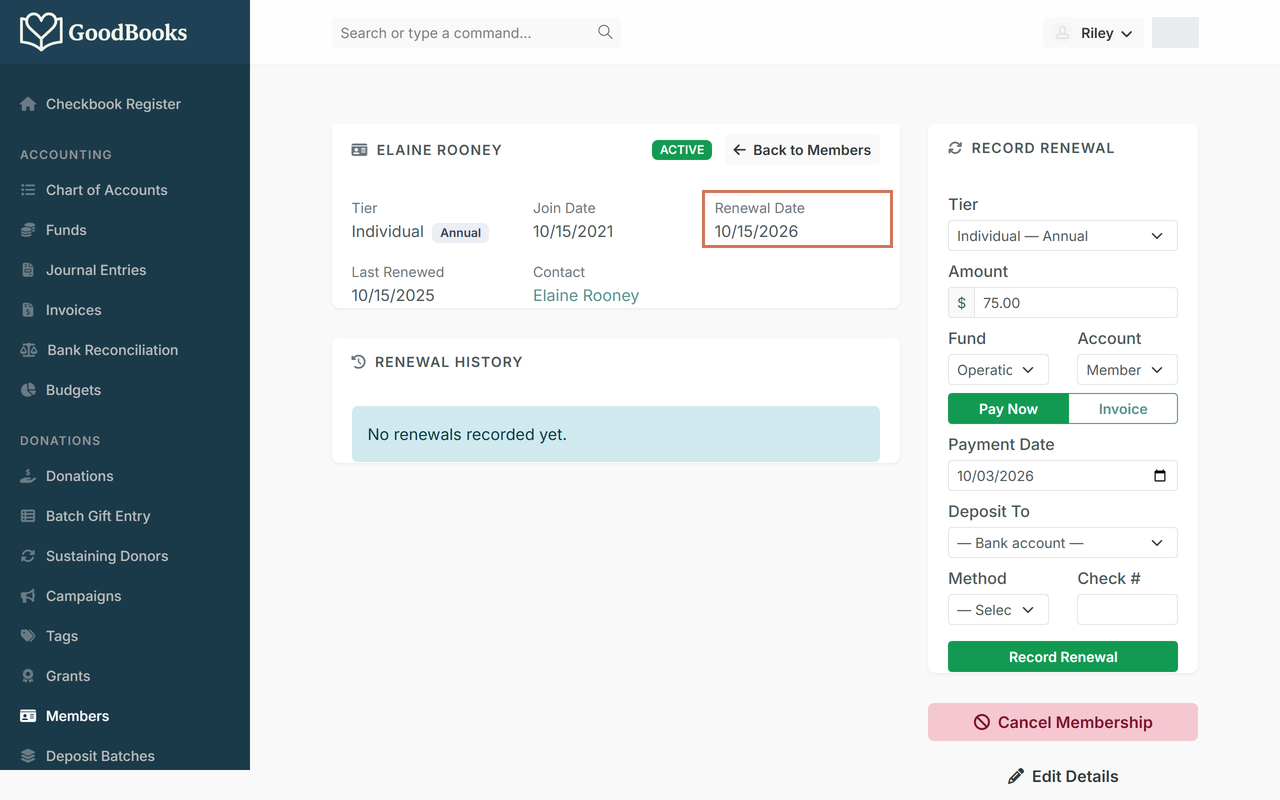
Read the renewal date. The member's page shows their tier, join date, and the date their membership comes up for renewal. "Last Renewed" tells you when they last paid.
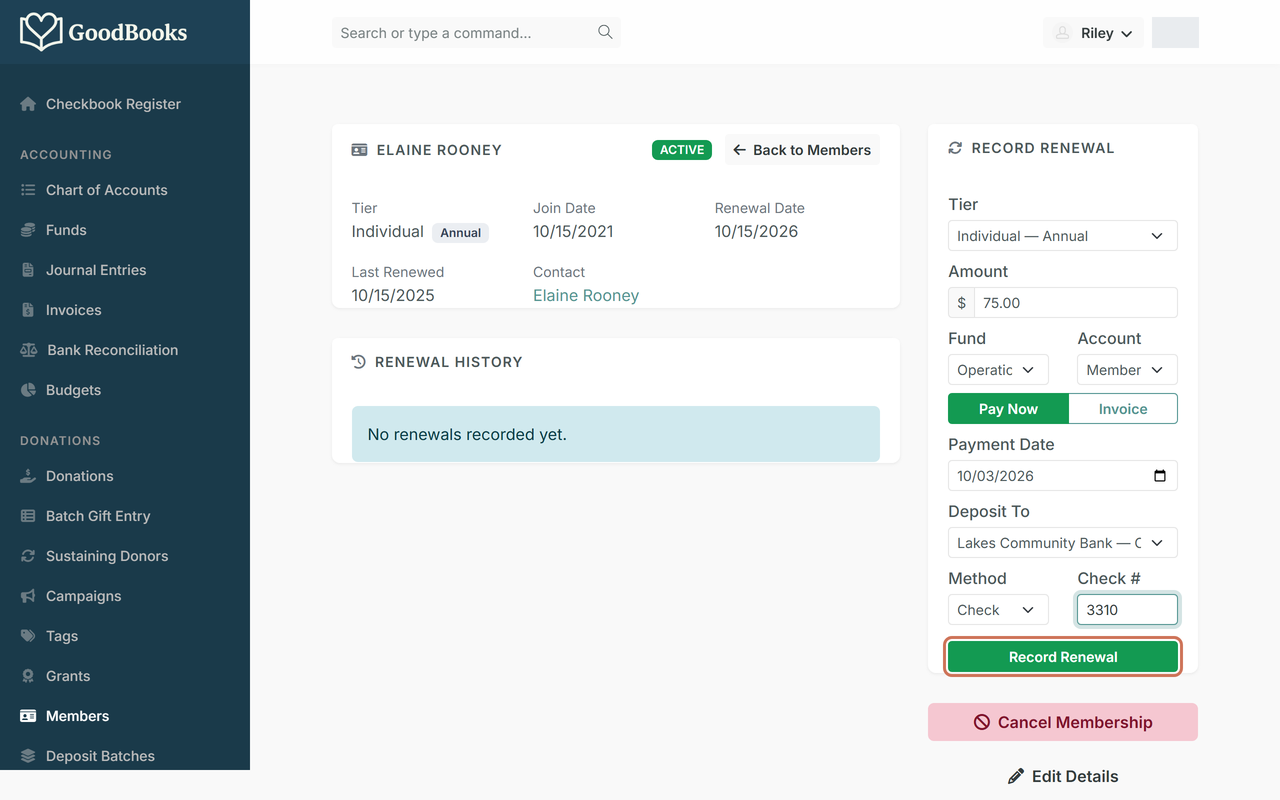
Record dues. When a member pays, use the Record Renewal panel on the right. Check the tier and amount, choose Pay Now, pick the bank account the money went into, the method, and the check number if there was one. Click Record Renewal.
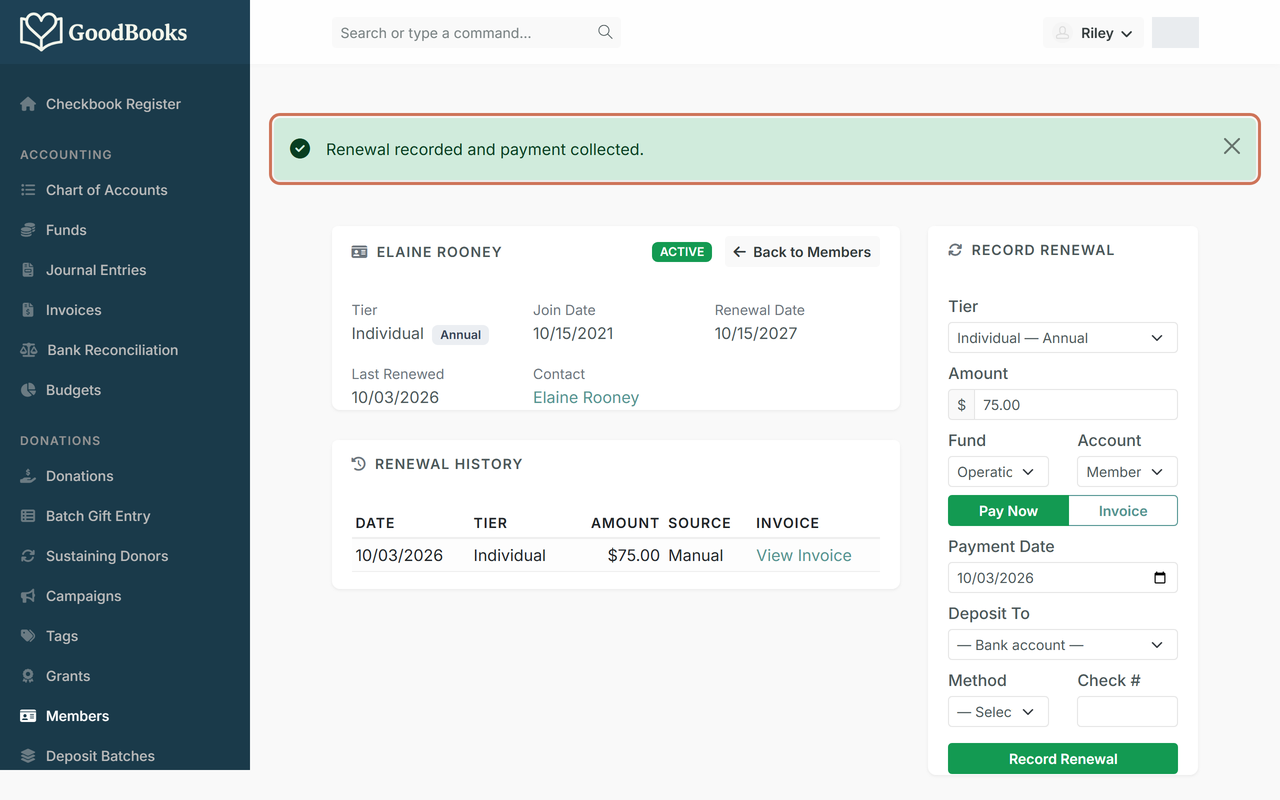
Done in one step. GoodBooks creates the invoice, marks it paid, posts the deposit to your register, and moves the renewal date forward a term. The renewal history keeps the record. (How the dates and reminders work: How Membership Renewals Work.)
Record a donation. Click Donations in the left menu, then Add Donation.
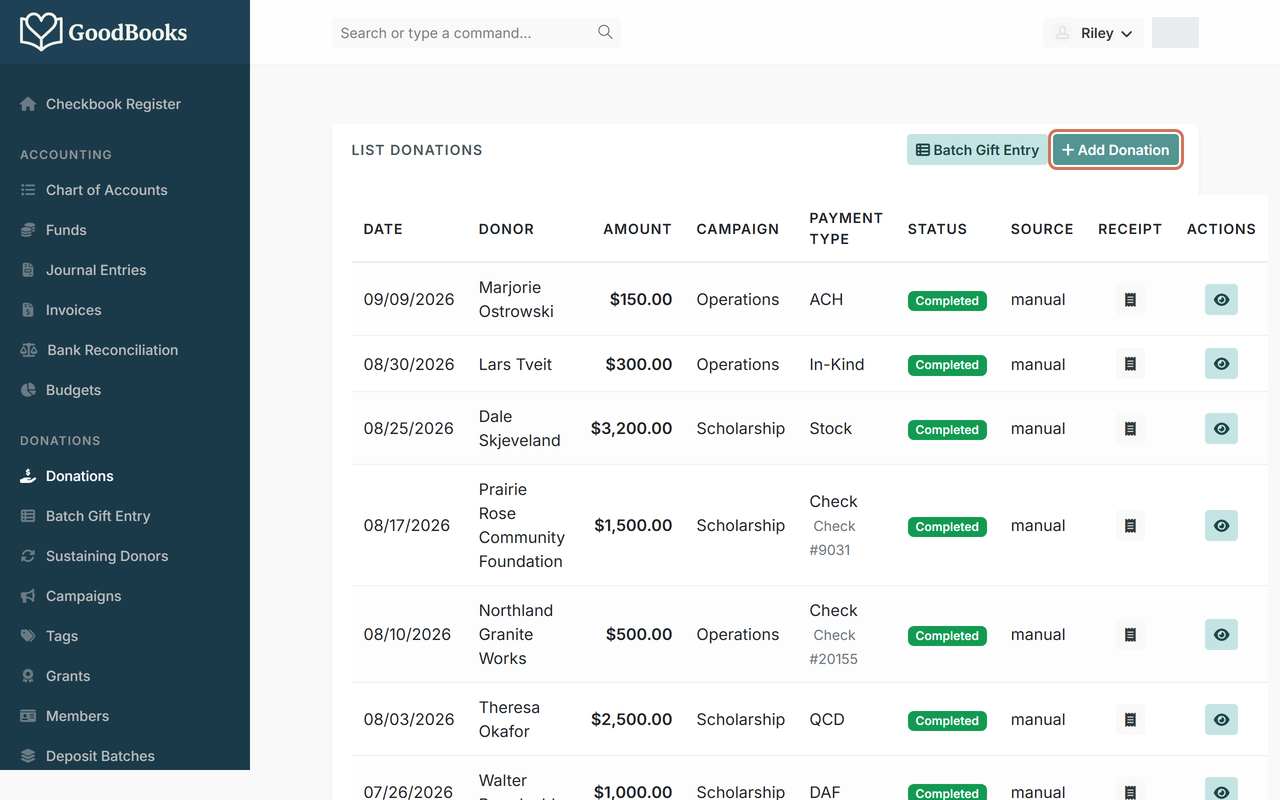
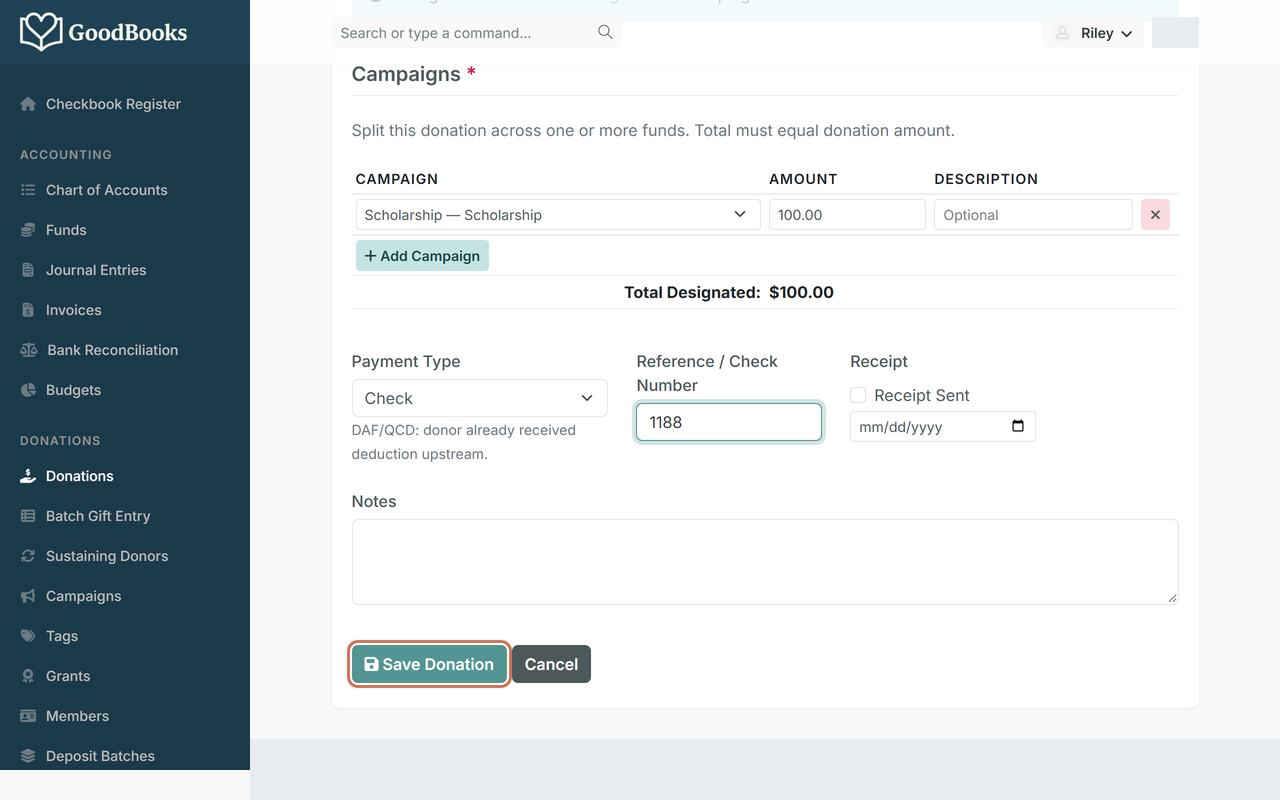
Enter the gift. Pick the donor (start typing their name), the date, and the campaign or fund the gift is for. A gift can be split across more than one. Choose the payment type, add the check number if there is one, and click Save Donation.
Donations don't hit your register right away. They collect in a deposit batch, which you post when you actually take the checks to the bank. That keeps your register matching your bank statement. (See Understanding Deposit Batches.)
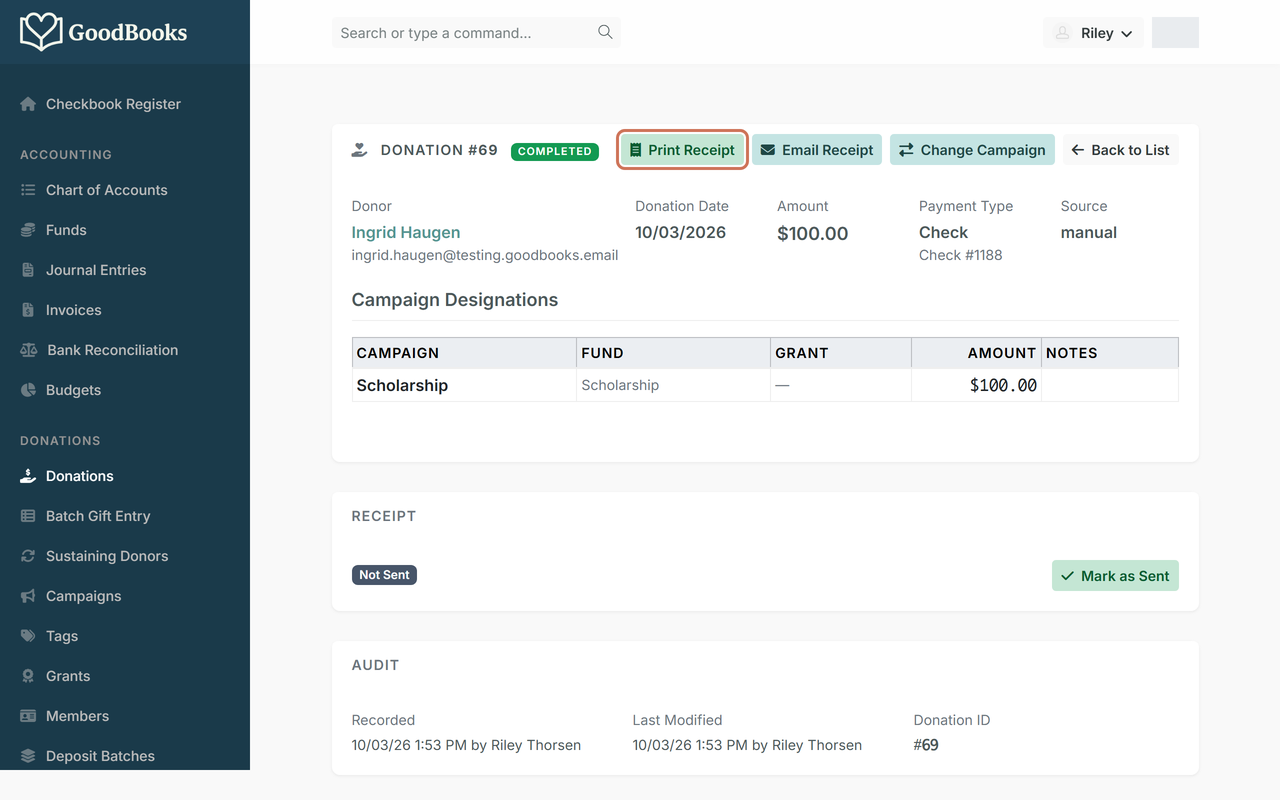
Open the receipt. From the saved donation, click Print Receipt.
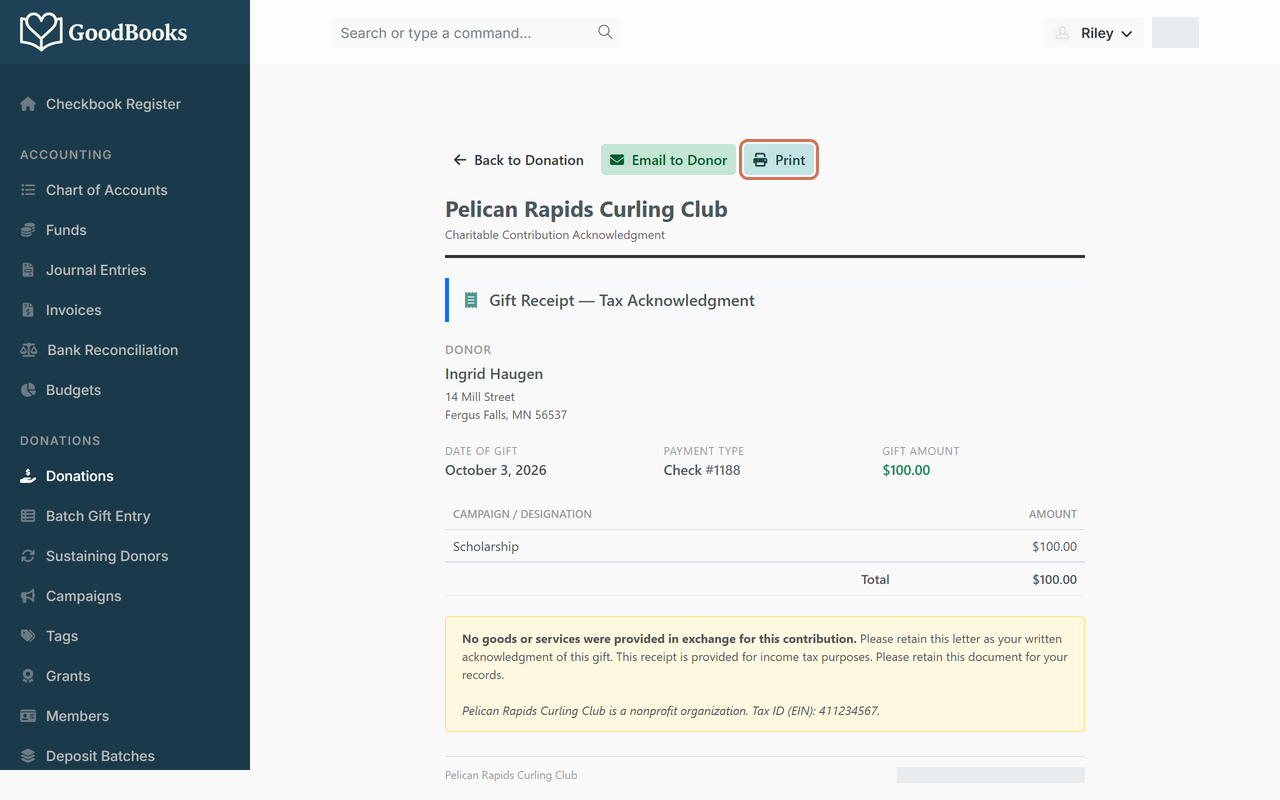
Print or email it. The receipt carries the tax-acknowledgment language the IRS expects. Print it for the mail, or use Email to Donor to send it straight from GoodBooks. (Details: Donation Receipts.)
Monthly bank reconciliation
Once a month, when the bank statement arrives, check the bank's view against yours. This is the single best habit a treasurer can have.
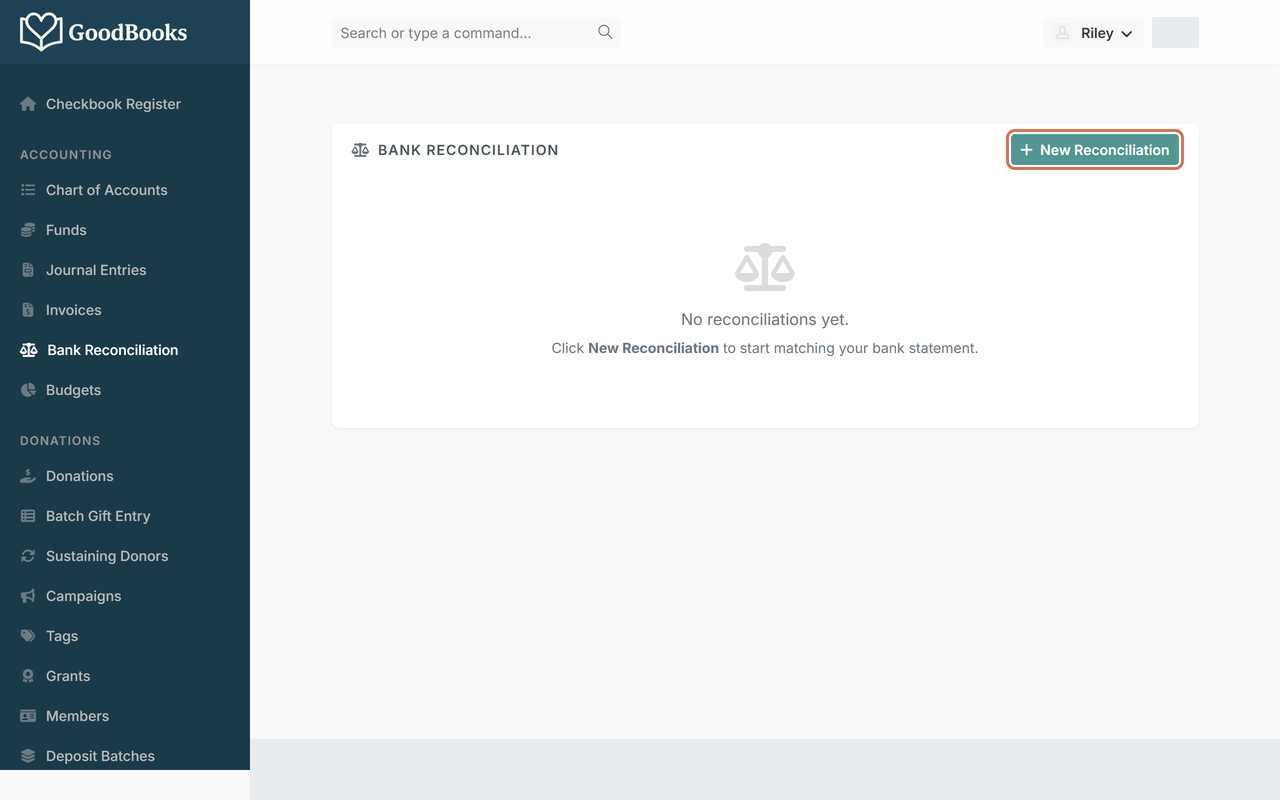
Start a new reconciliation. Click Bank Reconciliation in the left menu, then New Reconciliation.
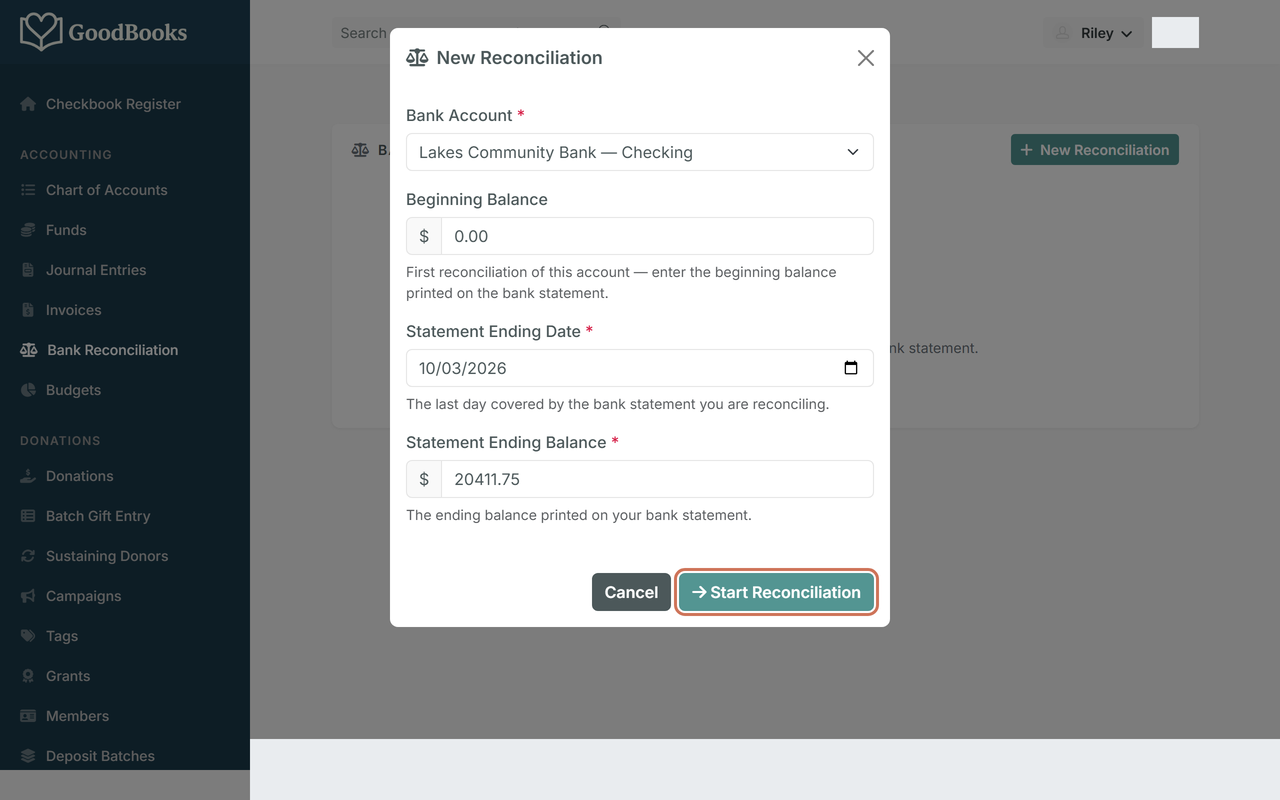
Enter the statement. Choose the bank account, enter the statement's ending date and ending balance, and click Start Reconciliation.
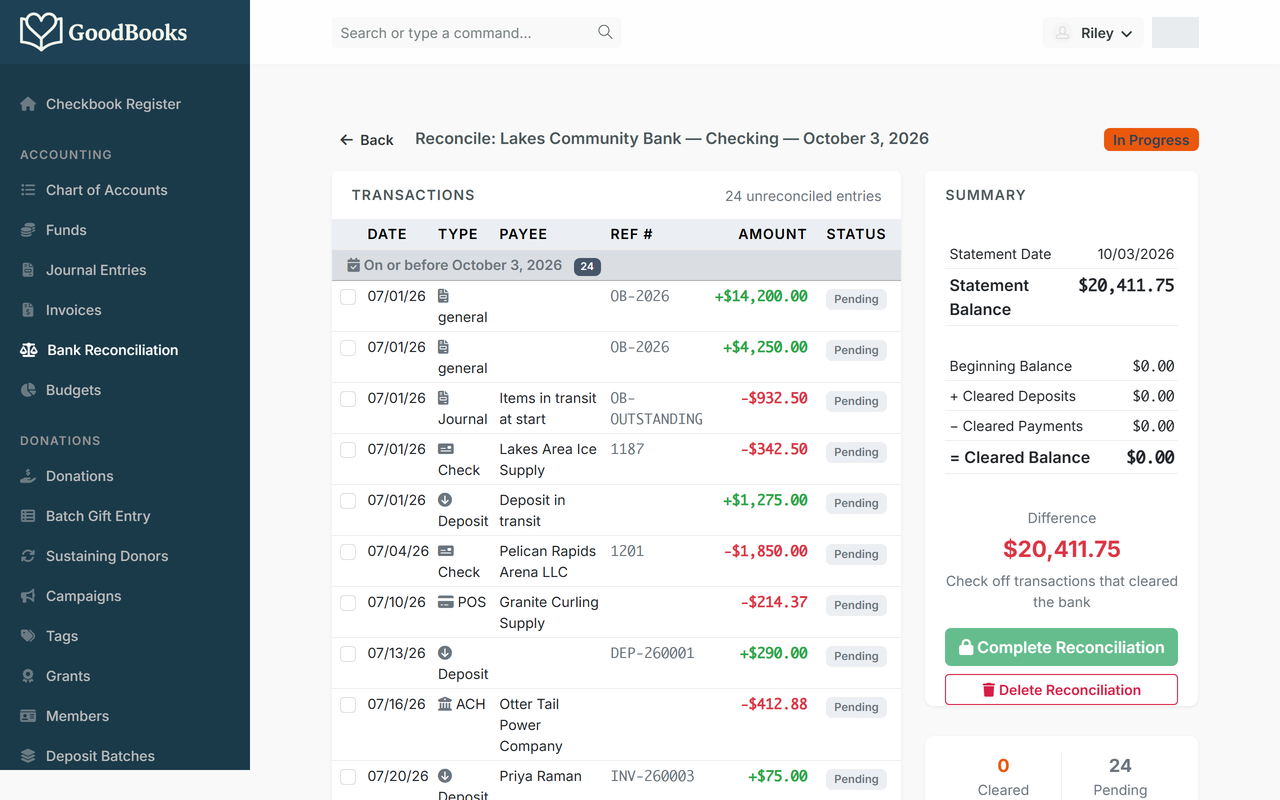
Tick what cleared. Go down the statement and check off each transaction that appears on it. The Difference on the right shrinks as you go. When it reads $0.00, click Complete Reconciliation. If it won't reach zero, something is missing from the register or entered twice; the unticked rows are where to look. (The full walkthrough: Reconciling Your Bank Account.)
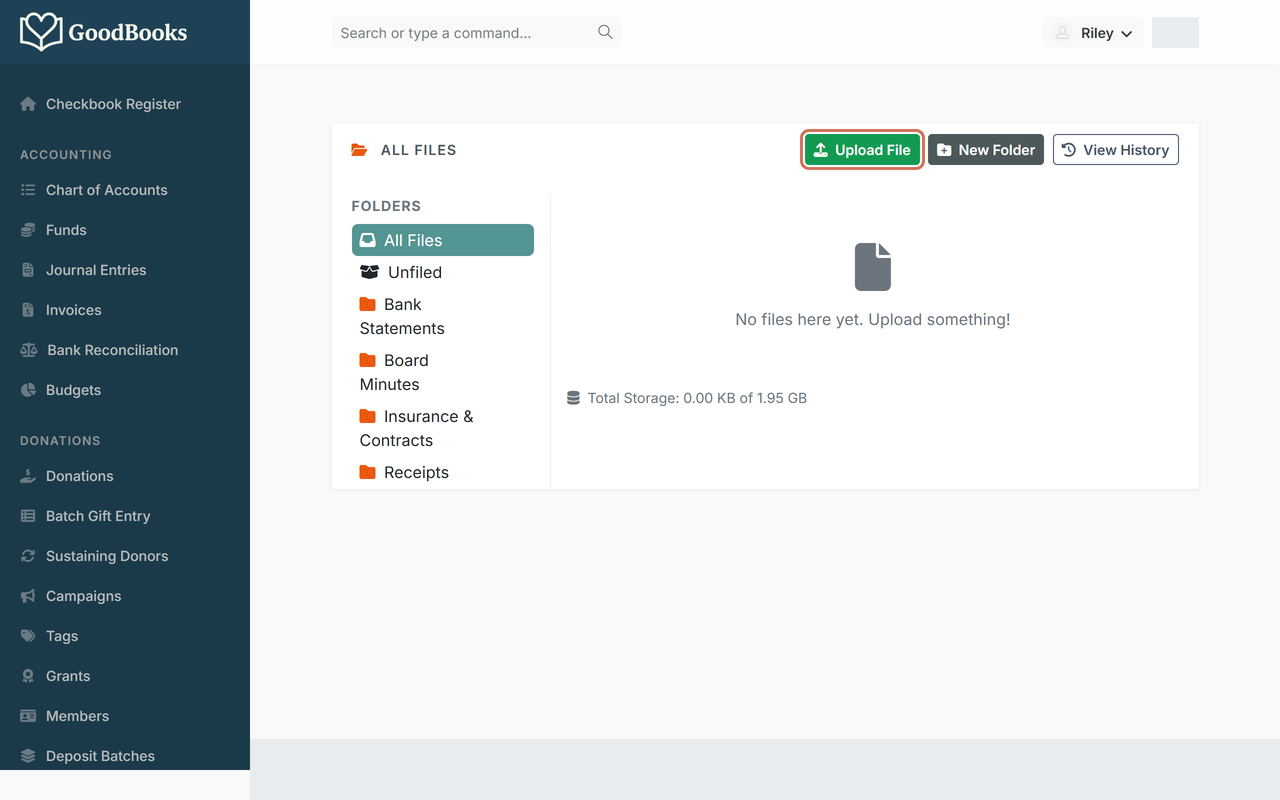
File the statement on The Shelf. Click The Shelf in the left menu and use Upload File to keep the statement with your books. Make folders for bank statements, board minutes, insurance, and receipts, and they'll be waiting each month. (See The Shelf: Your Document Storage.)
Board meeting reports
Two reports answer almost every question a board asks: the Balance Sheet from above ("how much do we have, and how much is restricted?") and this one ("how are we doing against the budget?").
Run Budget vs. Actual. From All Reports, open Budget vs. Actual. Choose your budget and the date range, then click Run Report. (No budget yet? Creating and Managing Budgets takes about half an hour.)
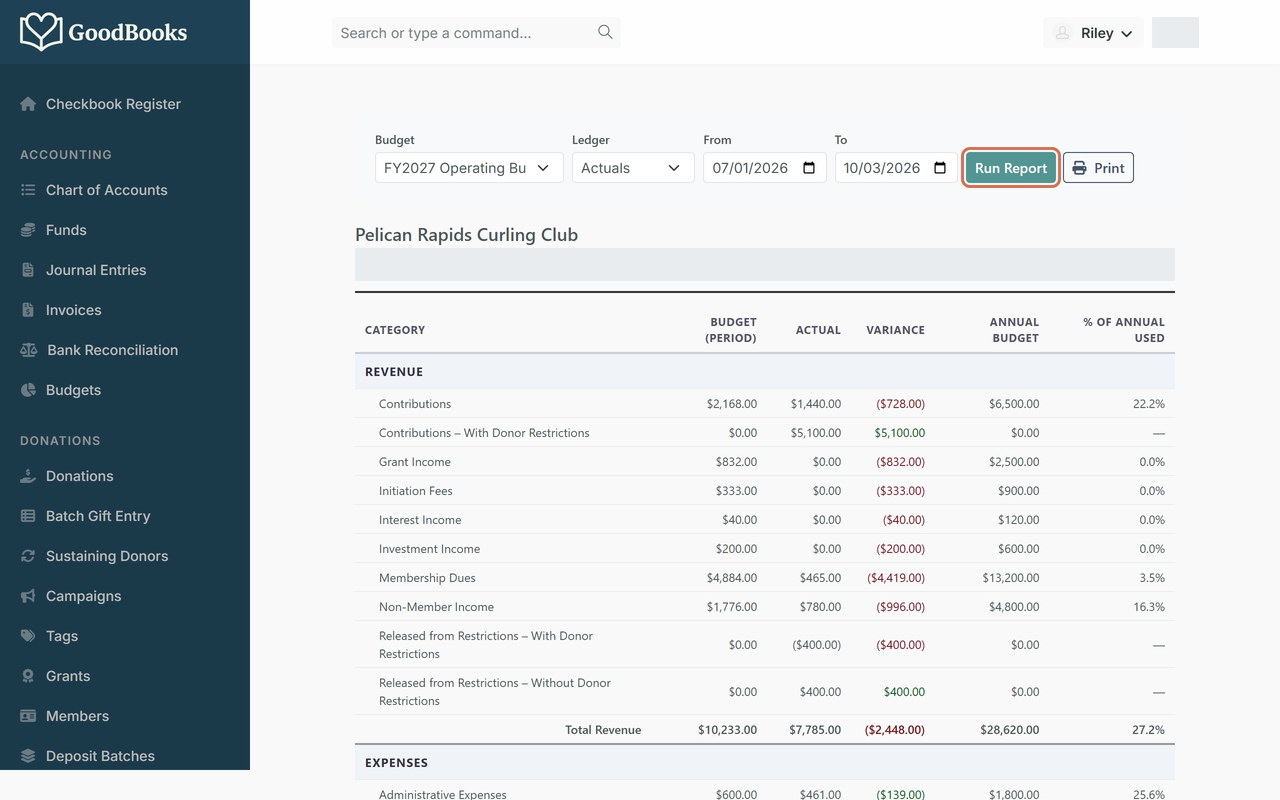
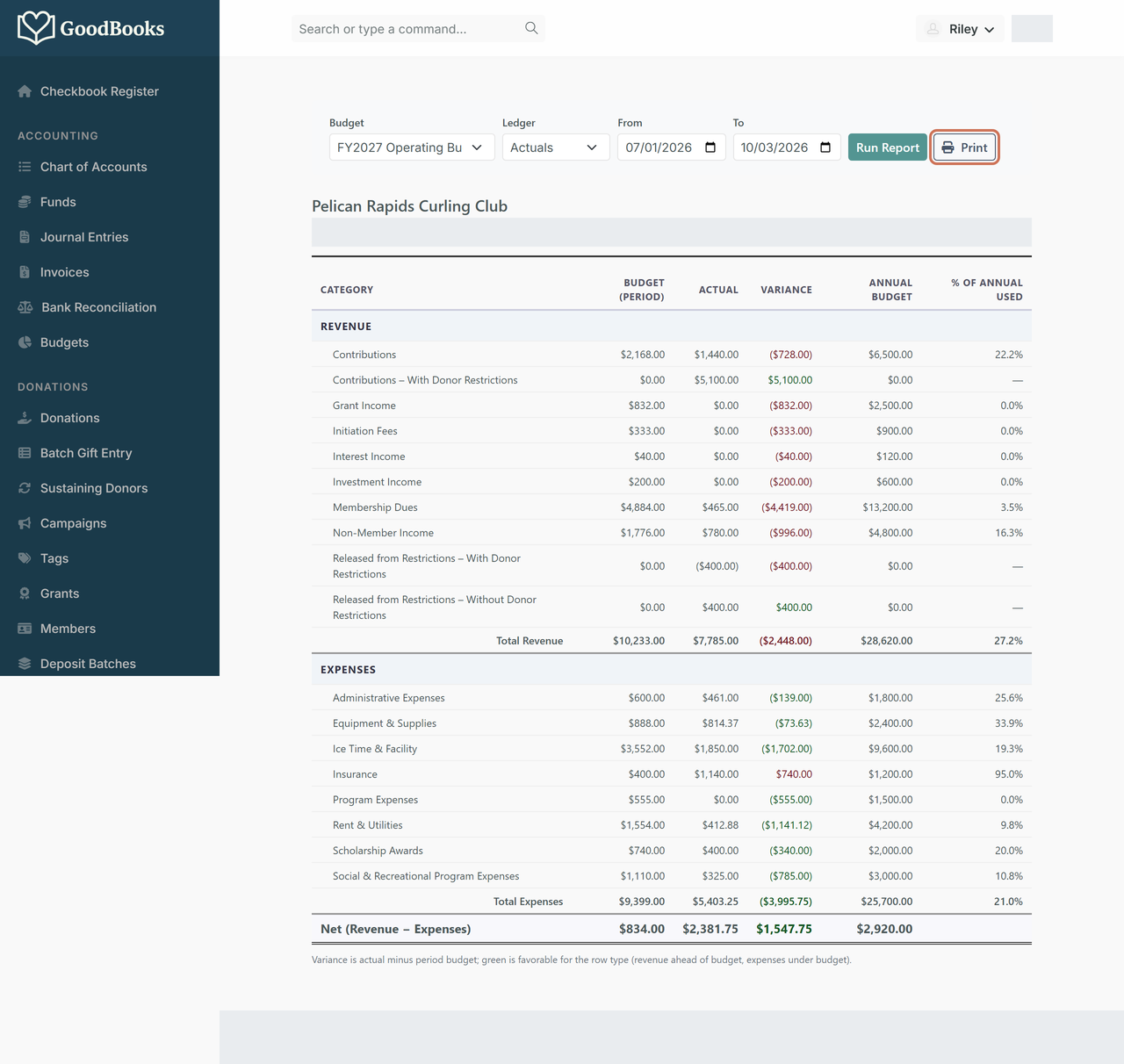
Read it, then print it. Each income and expense line shows the budget for the period, what actually happened, and the difference. Green is good news for that line; red means revenue is behind or spending is ahead. Click Print and choose "Save as PDF" in your browser to attach it to the board packet.
Getting help
- Short articles for every screen are right here in the help center — start with A Guide to Your Financial Reports.
- Email support@goodbooks.app. A real person reads it, usually the same day.
- Something looks wrong in the numbers? Don't delete anything. Email support with the date and amount and we'll walk through it with you. GoodBooks keeps a history of every change, so nothing is ever truly lost.
Cheat sheet
| Task | How often | Where in GoodBooks |
|---|---|---|
| Record deposits, checks, card purchases, ACH payments | Weekly | Checkbook Register (home) |
| Print queued checks | Weekly, as needed | Register → Review & Print Checks |
| Record a donation and send the receipt | As gifts arrive | Donations → Add Donation |
| Post donations to the bank | When you make the deposit | Deposit Batches |
| Record member dues | As members pay | Members → member → Record Renewal |
| See who's due or lapsed | Monthly | Members (Grace / Lapsed filters) |
| Reconcile the bank statement | Monthly | Bank Reconciliation → New Reconciliation |
| File statements and receipts | Monthly | The Shelf → Upload File |
| Balance Sheet | Before each board meeting | All Reports → Balance Sheet |
| Budget vs. Actual | Before each board meeting | All Reports → Budget vs. Actual |
| Ask a question | Any time | support@goodbooks.app |
Good to know
- Every entry needs a fund. If you're not sure, your general or operating fund is the right default; restricted funds are for money a donor or grant earmarked.
- Donations and member dues post to the register through deposit batches and invoices, so you'll see them in the register as deposits, not as individual gifts.
- Nothing in the register is ever erased. Corrections are recorded as new entries, which is exactly what an auditor wants to see.
- The screenshots here use a fictional club. Your menu may have a few more or fewer items depending on your plan and which features your organization has turned on.
Comments
0 comments
Please sign in to leave a comment.